From Junk to Gem: Turning an old PC into a Home Server
By Saai Syvendra ·
So I had this old PC lying around, not doing much. Instead of letting it gather dust, I thought why not turn it into something useful? That’s how I ended up setting up my own home server 🖥️.
The Base Setup
First things first, I installed Ubuntu 20.04 LTS Server on the machine 🐧. I didn’t go with the desktop version because I didn’t really need a GUI. Just something lightweight, stable and supported. That was the main objective for this old PC.
Then I assigned static IPs for both the LAN and WLAN interfaces 📶. The PC didn’t have Wi-Fi built in, so I had to use an adapter. This just makes it easier to access the server and set up things like DNS and reverse proxies without the IP changing randomly.
After that, I tucked the PC away in a corner and did the rest of the setup using SSH from my main laptop. Much easier than plugging in a monitor and keyboard every time.
What I Installed (and Why)
When I was brainstorming what the server had to contain, a lot of ideas popped into my mind. Cloud storage and movie server were two main ideas… So that was the starting point.
To manage all these services better, I decided to containerize them and use Docker 🐳, except for a few Pi-hole. This made managing the different services easier.
Glance
This wasn't the first thing I installed, but as I started adding more services, I realized I needed a way to keep track of everything and to have a centralized place to navigate to other services. That’s when I found Glance.
It’s a lightweight dashboard that gives you a quick overview of all the containers and their domain. It’s not super fancy, but it gets the job done without being overwhelming. It’s like a mini dashboard for my server, and it’s super handy to have everything in one place.

That doesn't mean it doesn't have any features though. It has theme customization, pulling and visualizing data from various social media platforms, and even a built-in weather widget 🌦️. I mainly use it to keep track of my containers and their status.

Nextcloud
This is kinda like Google Drive, Photos, Chats, and Gmail all merged together AND hosted by me ☁️. I mainly use it as a personal cloud storage. It comes with a slightly customizable UI, giving you the freedom to change the colors and background image.

Jellyfin
All the movies and shows lying on my laptop were now stored in the server 🎞️. When I was searching for a way to actually watch them properly, that’s when I came across Plex and Jellyfin.
I did start with Plex, yes it was smooth at first, but after a while, it started feeling a bit bloated. It was trying to be a full-blown streaming service with its own content, ads, and all that. Felt like overkill for what I wanted.
Then I tried Jellyfin and that just clicked. It’s open-source, lightweight, and does exactly what I need: stream my own stuff, with no extra drama. The web interface is clean, it works well across devices, and I’ve had no complaints so far.

qBittorrent
I wanted to download the movies on the server itself, instead of clogging up my laptop and transferring stuff later 📥. This was super helpful. I could just queue up downloads and let the server handle it.
Also handy for downloading stuff during off-peak hours to save on bandwidth or avoid slowing down the network during the day.
I went with qBittorrent because it has a clean web UI where I can add torrents, monitor progress, and tweak settings without touching the terminal. Works great remotely too, so I can manage downloads from my phone or laptop anytime. If I ever want to automate things further, it has hooks for that as well.

Docmost
I used to rely on Notion for jotting down configs, self-hosted URLs, project notes and random commands, but it started feeling a bit too bloated.
That’s when I switched to DocHost. It’s an open-source, markdown-based documentation tool that runs on my server 📝.
Now I’ve got my own private wiki with a simple UI, folder structure, instant search, and no extra fuss. Super handy for storing setup guides, cheat sheets, and whatever else I know I’ll forget in a week.

Speedtest Tracker
When I was torrenting stuff directly on the server, I wanted to keep an eye on how fast (or slow) my internet actually was 📡.
Speedtest Tracker runs internet speed tests at regular intervals and logs the results. So I can easily check how things are going throughout the day. If a download feels slow, I can just look at the dashboard and figure out if it’s my connection or the torrent itself.

Netdata
This one's more for the geek in me 🤓.
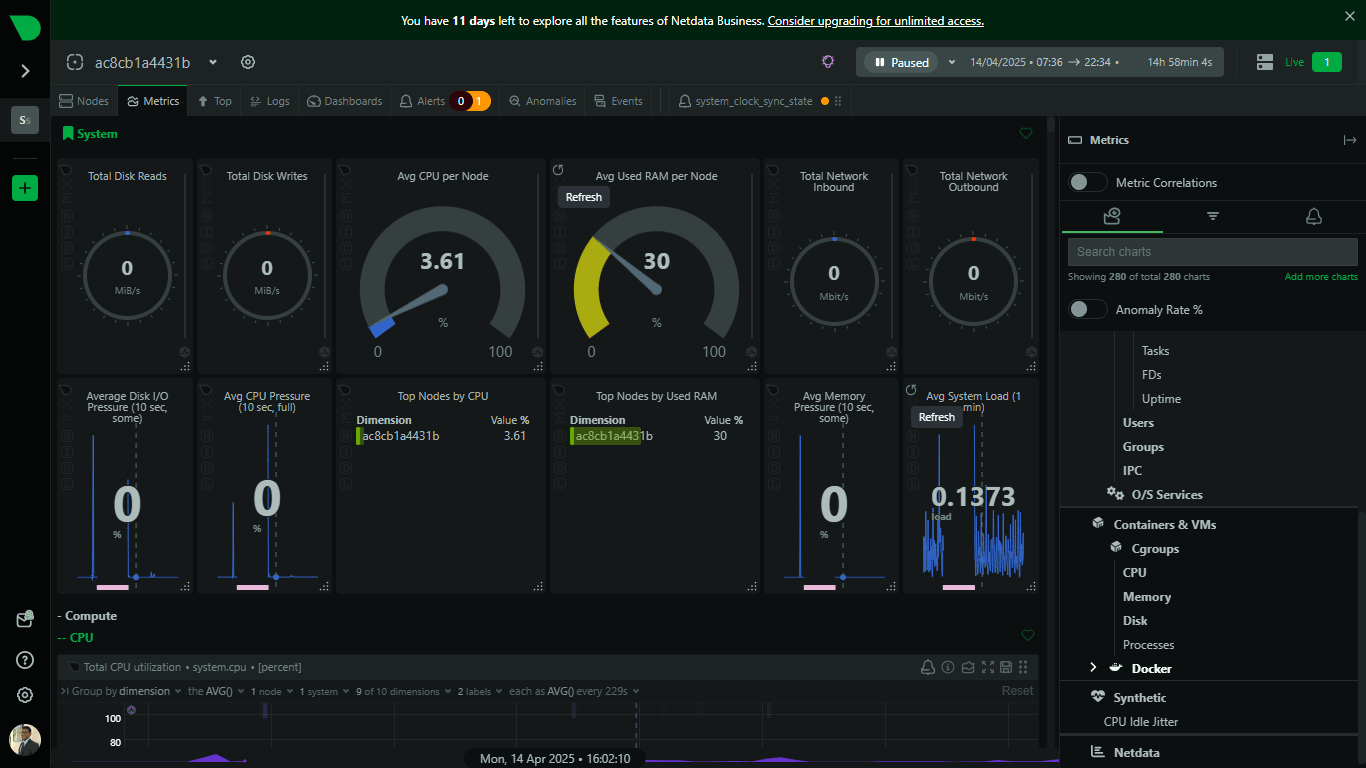
It shows real-time stats about the system like CPU usage, RAM, disk, network traffic, and the whole work. The dashboard looks cool and sometimes I just stare at it like it’s a stock market ticker.
What’s also great is that it tracks Docker containers too. So I can see exactly how much each service is using, if something’s hogging memory, or if a container’s going rogue. Super helpful when I want to check if something’s slowing down the server or just keep an eye on overall health.
Pi-hole
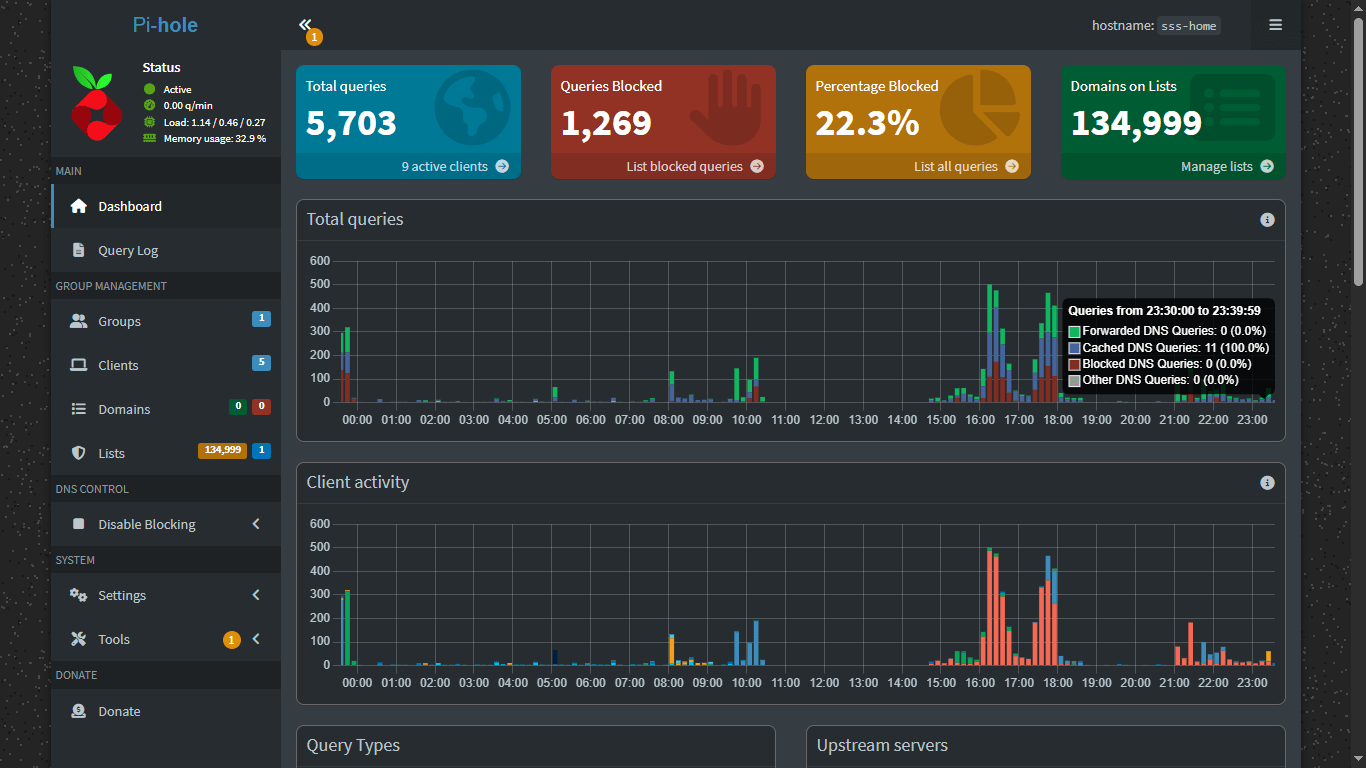
At one point, I just got fed up with seeing Google ads everywhere. On my phone, on my laptop, even inside apps. It was getting annoying. I wanted a way to block ads and trackers across all my devices, not just with a browser extension.
That’s when I came across Pi-hole. It’s basically a DNS sinkhole that blocks requests to ad servers.
Tailscale
One thing I knew early on is that I didn’t want this server to be useful only when I was at home. I wanted to access stuff like Nextcloud or qBittorrent even when I was outside, without messing around with port forwarding or exposing stuff to the whole internet.
That’s where Tailscale came in. It creates a secure private network between all my devices. I just installed it on the server and on my laptop and phone. Now, no matter where I am, I can SSH into the server, open the dashboards, or stream stuff securely like I’m still on my home Wi-Fi.
Nginx Proxy Manager
I wanted to access all these services without going through the hassel of typing IP addresses and ports. Initally I started of with nginx and setting up reverse proxies manually, but it was a bit of a pain to manage. That’s when I found Nginx Proxy Manager.
It’s a web-based interface for managing Nginx reverse proxies. I can easily set up subdomains for each service, manage SSL certificates, and even set up access control. It’s super user-friendly and saves me a ton of time.

Wrapping Up
That’s pretty much how I turned an old PC into a full-blown home server ⚙️. I’m still adding stuff here and there, but for now, it does everything I need, be it media, downloads, remote access, wikis, proxying and even ad-blocking.
If you’ve got an unused machine lying around, totally recommend giving this a shot 🚀. If you want me to write a more technical version, or have any more services that I can incorporate, hit me up! [email protected] or LinkedIn
#HomeServer
#SelfHosted
#Ubuntu
#HobbyProject

